 Sally
SallyFeatures
File operations that act on the right file
A file manager is only trustworthy if it acts on exactly the file you selected, even when the name is long, uses characters outside your Windows code page, or lives on a network share. That is the part of Sally that has had the most work.
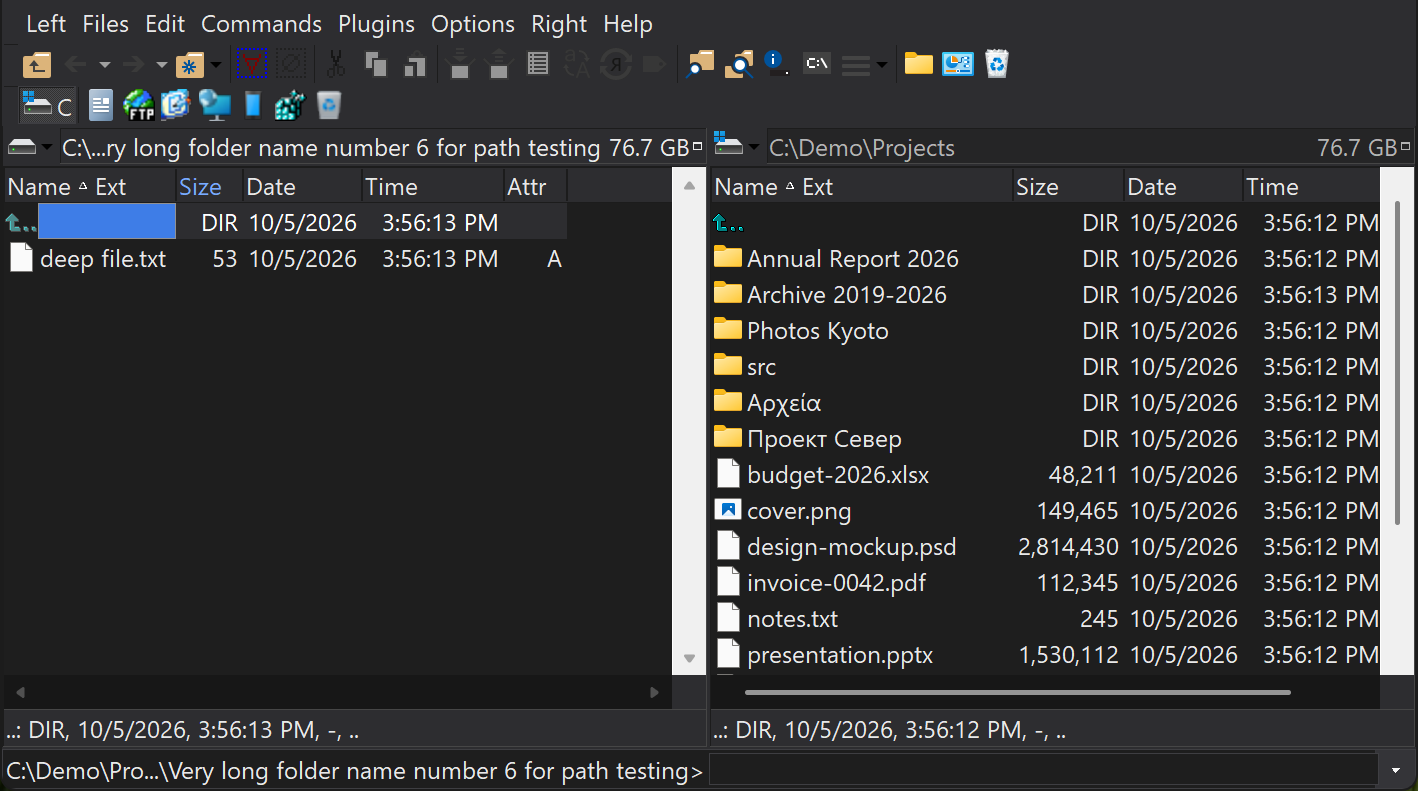
Unicode names and long paths
Sally handles file names in any script and paths up to the Windows limit of 32,767 characters. That holds through copy, move, delete, rename, create folder, quick rename, edit (F4), external view, drag and drop, paste from the clipboard, folder history and panel refresh. Network and WSL paths such as \\server\share\… and \\wsl$\… work the same way.
Sally also runs from a folder whose own path is non-ASCII, and an unreachable network path saved in your settings no longer stalls startup: the check can be cancelled.
Copy and move
F5 copies and F6 moves the selection to the other panel, or anywhere you type: a folder, an archive or a plugin path such as an FTP server. An operation mask renames on the way, for example *.bak. The Copy dialog's extra options cover the cases that usually need a script:
- overwrite older files and skip the rest without asking;
- copy only files that match a mask, or only files changed recently or within a size range, without creating empty folders;
- preserve NTFS owners and permissions, the Archive, Compressed and Encrypted attributes, and folder dates;
- ignore alternate data streams, which is much faster from a slow network share;
- limit the transfer speed, or queue the operation until other copy and move operations finish.
Long operations run in the background with their own progress window, so you can keep working in the panels. Errors offer Retry, Skip and Skip all, and you can save the options you use most as the dialog's defaults.
Delete, rename and everything else
- F8 or Delete deletes, to the Recycle Bin if you choose; Shift+F8 does the opposite of that setting for one operation.
- F2 renames in place; Ctrl+Shift+R opens Batch Rename for many files.
- Ctrl+F7 changes name case, for the name, the extension or both, optionally in subfolders.
- Ctrl+F2 changes attributes and times; the Files › NTFS Commands menu compresses, uncompresses, encrypts and decrypts.
- Ctrl+K converts text files between encodings and line endings.
- Alt+F10 shows how much space a selection occupies on disk, and Ctrl+Shift+F10 sizes every folder in the panel.
Clipboard and drag and drop
Copy, cut and paste work with Explorer in both directions, including Paste Shortcut. Drag and drop works between the panels, other programs, and from archives and FTP servers. Alt+Insert copies the full name of the focused file as text, and Ctrl+Shift+Insert its UNC name.