 Sally
SallyFeatures
Find it, then work with what you found
Alt+F7 or Ctrl+F opens Find. The results window is a working list: view, edit, copy, move or delete what it found, or send it all back to a panel.
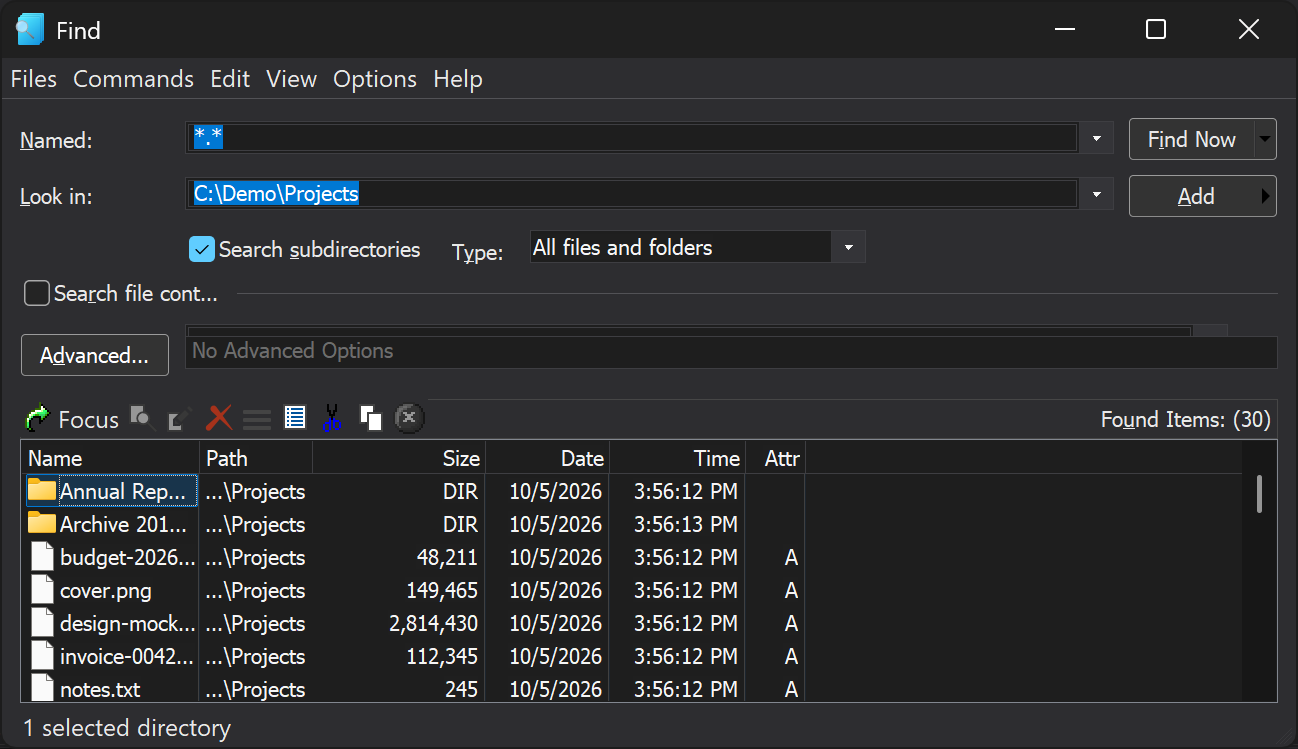
Say what you are looking for
- Names by mask, such as
*.psd;*.ai. A word without wildcards matches anywhere in the name. - Where: one or more starting folders separated by semicolons, or all local and network drives, with or without subfolders.
- Content: text, case-sensitive or not, whole words, regular expressions, or hex byte patterns.
- Advanced: size range, modified date and time range, and attributes that must or must not be set.
- Inside archives: search the files packed in ZIP, 7z and the other supported archives.
- Leave things out: an ignore list skips folders such as
System Volume Informationor build output.
Frequent searches can be stored and reloaded with the Settings Manager.
Duplicates
Find Duplicate Files groups files that share the same name, size or content, in any combination, so you can see which copies to remove.
Act on the results
- View (F3), edit (F4) and step through results in the viewer.
- Copy, move, delete, change attributes or open properties for a selection of results.
- Focus a result in the panel, or open several selected results at once with Shift+Enter.
- Show only files or only folders, and save the result list to a file to reload it later.
Before an operation on results runs, Sally checks that each file still exists and is the file that was found, so a stale result list cannot hit the wrong file.
Quick Search in a panel
For the current folder you rarely need Find: type the first letters of a name and the panel jumps to it. More about panels.