 Sally
SallyFeatures
Panels and navigation
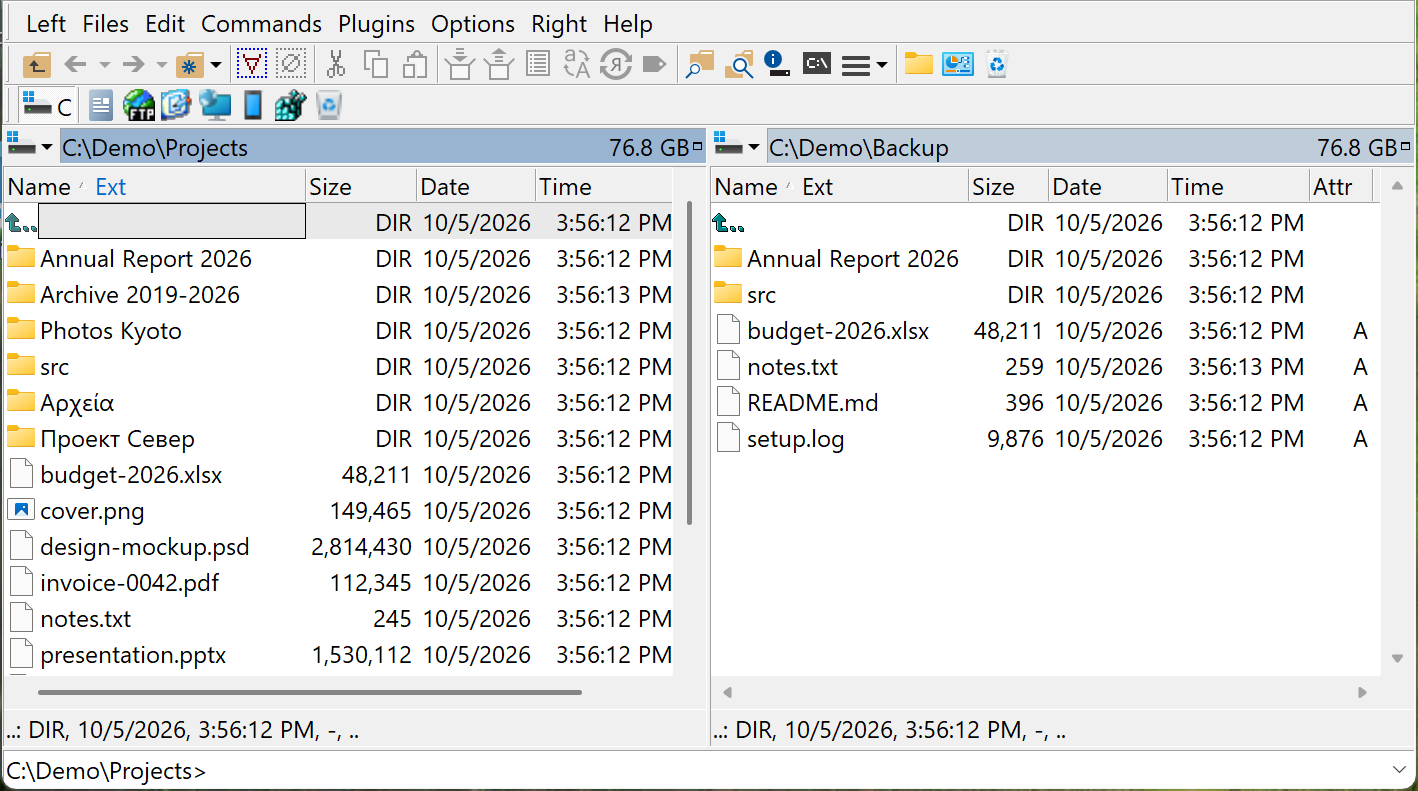
Two panels side by side: the source on one side, the destination on the other. Everything you do starts from the focused item in the active panel, and Tab swaps sides.
Views that fit the job
Each panel has six views: Brief, Detailed, Icons, Thumbnails, Tiles and Types. Switch with Alt+2 through Alt+7. Detailed view lets you pick and size columns per view, and sorting by name, extension, time or size is one key away (Ctrl+F3 to Ctrl+F6).
Ctrl+F11 maximizes the active panel, and the split bar can be dragged or reset to half and half.
Get anywhere fast
- Quick Search: start typing a name and the first match is focused. Up and Down step through other matches.
- Hot paths: up to 30 named shortcuts to local, network, archive or plugin paths. Ctrl+0…9 jumps to the first ten, Ctrl+Shift+0…9 stores the current folder, and Shift+F9 lists them all.
- History: Alt+Left and Alt+Right go back and forward through the folders a panel visited, and Alt+F12 lists recent working folders.
- Change drive: Alt+F1 and Alt+F2 open the drive menu for the left and right panel, including network drives and plugin file systems.
- Type a path: Shift+F7 changes to any path you type or paste, with environment variables expanded and quotes trimmed.
Select precisely
Insert or Space selects the focused item (Space also calculates a folder's size). Num +, Num - and Num * select, deselect and invert by mask, such as *.log or report-??.*. Selections can be saved and loaded, and Ctrl+D clears them.
See only what matters
A panel filter (Ctrl+F12) shows only files that match a mask and stays on as you change folders. Highlighting rules color groups of files by mask and attributes, for example archives in blue and encrypted files in green. Ctrl+H toggles hidden and system files.
Your tools, one key away
The command line under the panels runs programs in the current folder; Ctrl+Enter inserts the focused name. The User Menu (F9) runs your own commands on the selection with arguments such as the full name or the other panel's path, and can be shown as a toolbar.